Tuesday, January 13, 2026 17:09:41

Creating Your First Laravel Project: A Step-by-Step Guide for Beginners

Laravel, one of the most popular PHP frameworks, empowers developers to build robust and scalable web applications effortlessly. If you're taking your first steps into the world of Laravel development, this comprehensive guide will help you create your first Laravel project seamlessly. By utilizing the powerful dependency management tool, Composer, you'll be able to set up your Laravel project efficiently, enabling you to dive into the world of Laravel development with confidence.

Educational / November 07, 2023

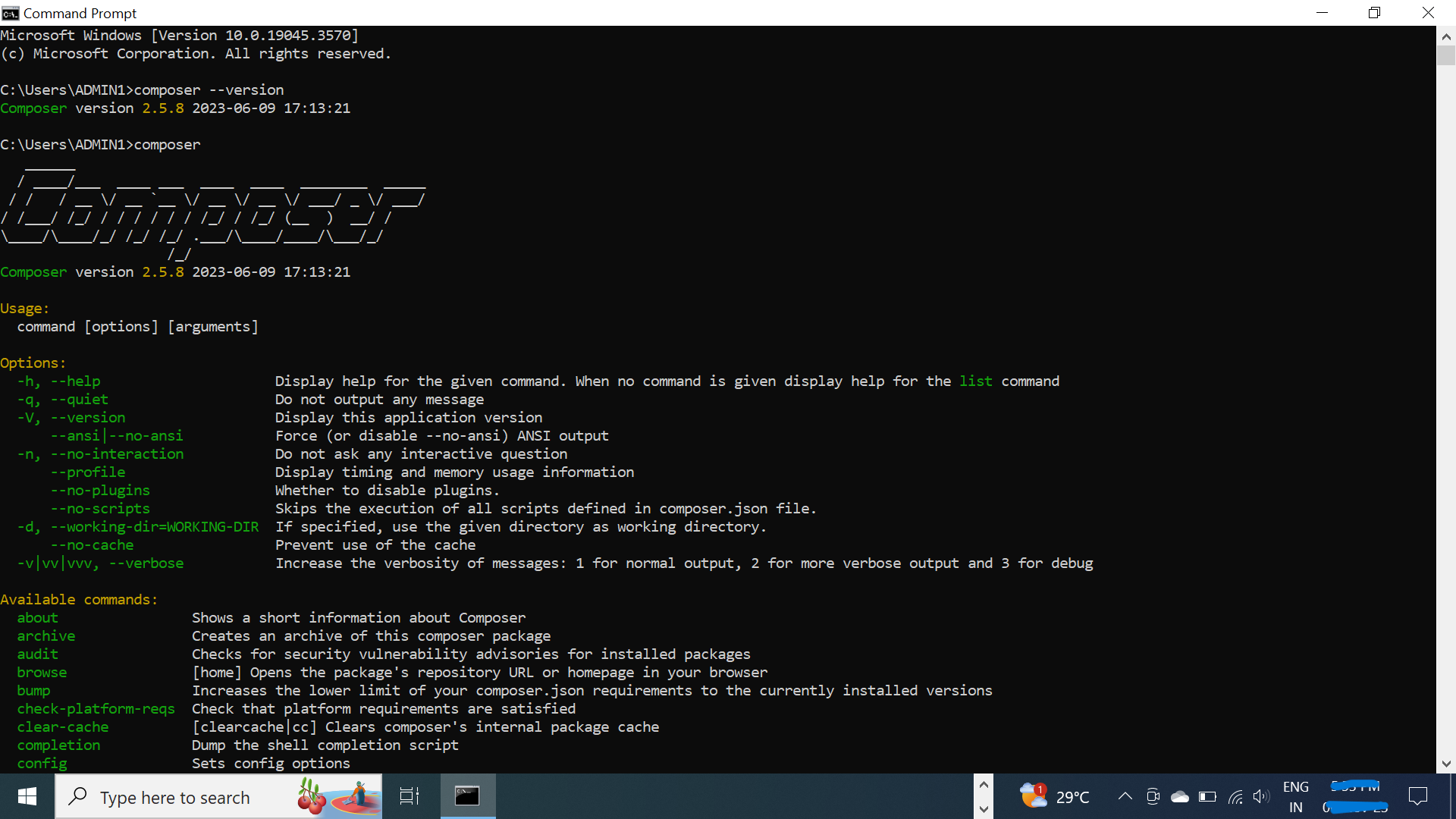
Step 1: Install Composer Before creating your Laravel project, ensure that Composer is installed on your system. Follow the installation steps mentioned earlier for your respective operating system.

Step 2: Create a New Laravel Project Once Composer is installed, create your first Laravel project by executing the following command in your terminal or command prompt:

composer create-project --prefer-dist laravel/laravel your_project_name

Replace your_project_name with the desired name for your project.

Step 3: Navigate to Your Project Directory After the project is created, navigate to your project directory using the following command:

cd your_project_name

Step 4: Serve Your Laravel Application To view your Laravel application in the browser, run the following command:

php artisan serve

Step 5: Access Your Application Open your web browser and access your Laravel application by typing the following URL in the address bar:

http://localhost:8000

Congratulations! You've successfully created your first Laravel project using Composer. Now you're ready to explore the extensive features and functionalities offered by the Laravel framework, empowering you to build sophisticated web applications with ease.

0 Comments

Leave a comment

Author Details

Author name- Deep

Newsletter

Please Enter Your Email for Subscribe Newsletter

MyBlog

Your Personal Blog Website.
Register your account for Add Blogs.

© Deepakhawale.in. All Rights Reserved.