Tuesday, January 13, 2026 17:09:42

Complete Guide: How to Install Composer on Windows, Linux, and macOS

Composer is a powerful dependency manager for PHP that simplifies the process of installing and managing libraries or packages required for your PHP projects. It streamlines the management of project dependencies and allows developers to easily integrate third-party libraries into their projects. Regardless of your operating system, installing Composer is a straightforward process that can be completed with just a few simple steps. In this comprehensive guide, we will walk you through the step-by-step process of installing Composer on Windows, Linux, and macOS, enabling you to seamlessly leverage its capabilities for your PHP development needs. Whether you're a beginner or an experienced developer, this guide will help you set up Composer on your preferred operating system, ensuring you have the necessary tools to efficiently manage your PHP projects.
Educational / November 06, 2023

Installing Composer on Windows:

  1. Download the Installer:

    Go to the Composer download page and download the Composer-Setup.exe file.

  2. Run the Installer:

    Double-click the downloaded file (Composer-Setup.exe) to run the installer.

  3. Follow the Setup Wizard:

    Follow the setup wizard instructions. Make sure to check the option to add Composer to your PATH during the installation process.

  4. Verify the Installation:

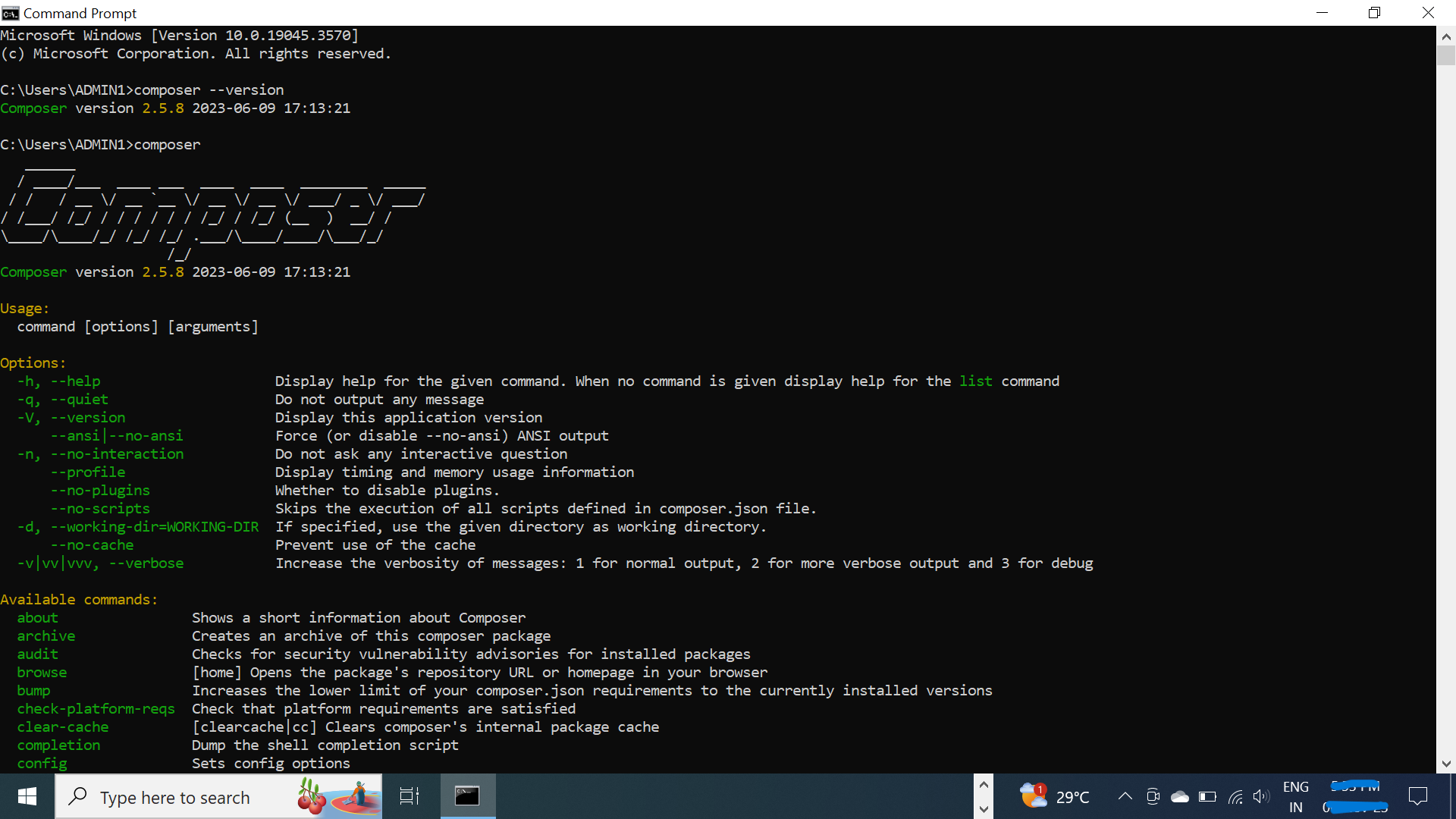
    Open a new command prompt and type composer --version to verify that Composer has been successfully installed.

Installing Composer on Linux:

  1. Install the Dependencies:

    Install the required dependencies using the following command:

    sudo apt-get install curl php-cli php-mbstring git unzip
  2. Download the Installer:

    Run the following command to download the Composer installer:

    php -r "copy('https://getcomposer.org/installer', 'composer-setup.php');"
  3. Install Composer:

    Run the installer script with PHP:

    sudo php composer-setup.php --install-dir=/usr/local/bin --filename=composer
  4. Verify the Installation:

    Check that Composer has been installed by running:

    composer --version

Installing Composer on macOS:

  1. Install Homebrew (if not already installed):

    Open a terminal and run the following command:

    /bin/bash -c "$(curl -fsSL https://raw.githubusercontent.com/Homebrew/install/HEAD/install.sh)"
  2. Install Composer:

    Use Homebrew to install Composer by running:

    brew install composer
  3. Verify the Installation:

    To verify the installation, run:

    composer --version
     

Congratulations! You have successfully installed Composer on Windows, Linux, and macOS. You can now use Composer to manage your PHP dependencies efficiently.


0 Comments

Leave a comment

Author Details

Author name- Deep

Newsletter

Please Enter Your Email for Subscribe Newsletter

MyBlog

Your Personal Blog Website.
Register your account for Add Blogs.

© Deepakhawale.in. All Rights Reserved.